Harnessing Edge Version 143+ and App Configuration for Secure, Purpose-Built iPad Browsing
If you manage iPads for work or study, you’ve probably wished for an easier way to create a secure, locked-down browsing environment. Microsoft’s latest update to Edge for iOS (version 143 and onwards) makes this a reality, allowing you to enforce a tightly controlled browser experience directly through Microsoft Intune using a new configuration key: EdgeLockedViewModeEnabled.
Why Lock Down Edge on iOS?
Locking down the browser on managed devices helps reduce distractions, tighten security, and ensure users stay within approved web resources. This is especially useful in educational settings, retail kiosks, or frontline worker scenarios where access to certain sites or browser features needs to be limited. Let’s look at a real-world scenario to make it even clearer.
Real Use Case: Survey Stand for Guests
Consider this: you need to set up an iPad on a stand at your premises for guests to fill out an exit survey using a Google Docs link.
In the past, you might have relied on the URLAllowList in Intune to restrict browsing, but this didn’t fully lock down the experience. Guests could open new tabs, or even tinker with browser settings—potentially breaking out of the intended survey flow.
As a less robust alternative to Edge’s locked view, you can use Intune’s Web Content Filter with Safari. Set the filter to allow only your survey URL and enable Single App Mode for Safari, but note this approach is less secure and easier to bypass than Edge’s lockdown.
With Edge version 143 and the EdgeLockedViewModeEnabled key, you can finally achieve the lockdown you need. Guests will only have access to the specified survey link in Edge, with no opportunity to launch new tabs, visit other sites, or modify browser settings—providing a reliable, secure, and seamless experience every time.
Prerequisites: What You Need Before You Start
- iPad enrolled and managed by Microsoft Intune: Your device must be registered with Intune to receive configuration policies and management commands.
- Microsoft Edge for iOS (version 143+), easiest is to procure license via Apple Business Manager: Ensure the Edge app is pushed out to your device fleet using Intune for consistency and control.
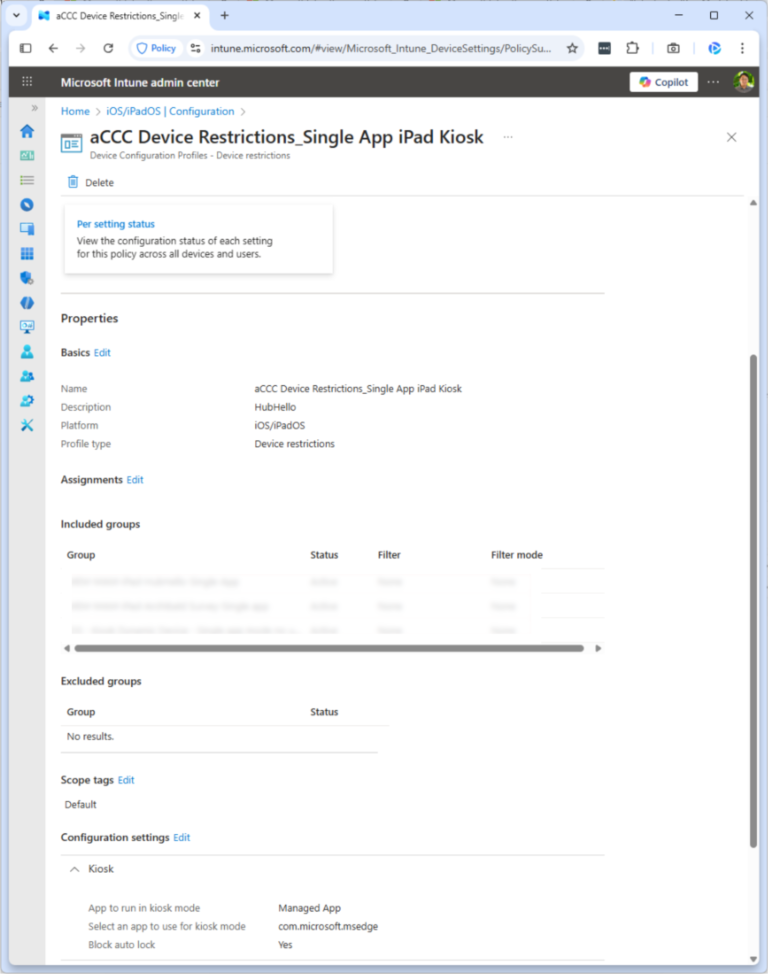
- Set up kiosk mode: Configure the iPad so that it launches only Microsoft Edge, keeping users locked to the browser and preventing access to other apps or system settings.
- Access to Intune Admin Centre: You’ll need admin permissions to create and assign App Configuration Policies.
- Understanding of App Configuration Policies: Familiarity with configuring and deploying policies in Intune will help streamline the process.
How to Configure Edge Locked View Mode with Intune
- Update Edge on Target Devices: Make sure all iPads have Microsoft Edge updated to at least version 143. Earlier versions don’t support locked view mode.
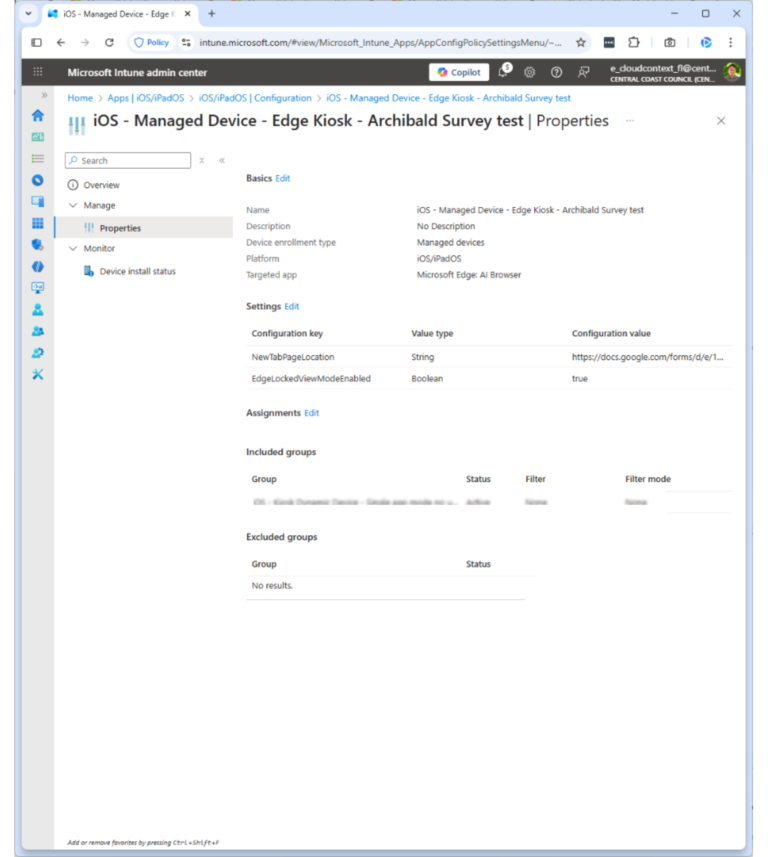
- Set Up an App Configuration Policy in Intune:
– Navigate to the Intune Admin Centre and create a new App Configuration Policy for iOS/iPadOS managed devices.
– Select Microsoft Edge as the target app.
– In the configuration settings, add the key EdgeLockedViewModeEnabled and set its value to true.
– Assign the Policy to Device Groups: Choose which users or device groups need the locked-down experience and deploy the policy accordingly.
- Test and Validate: After deployment, test on a sample device to ensure Edge launches in locked view mode. Guests should see only your survey link, with navigation and settings locked down.
Customising the Experience
Here’s what to expect after enabling this policy:
- The URL address bar becomes read-only, preventing users from changing the web address.
- Users can’t create new tabs (although this can be overridden by using another configuration key EdgeLockedViewModeAllowedActions).
- Contextual search on web pages is disabled.
- The following buttons in the overflow menu are disabled:
– New InPrivate tab
– Send to Devices
– Drop
– Add to Phone (Android)
– Download Page (Android)
If you disable or don’t configure this policy:
- The browser functions normally, allowing users to switch views, open or close tabs, and access all standard features. NOTE: This policy only takes effect if the EdgeLockedViewModeAllowedActions policy is enabled.
Common Use Cases
- Education: Keep students focused on approved learning resources.
- Retail or Kiosk Mode: Deliver a consistent, tamper-proof experience for customers or staff.
- Frontline Workers: Restrict browsing to work-related sites and tools, enhancing compliance and productivity.
- Survey Stations: Ensure a dedicated, distraction-free interface for collecting visitor feedback or data.
Troubleshooting Tips
- Ensure all devices are updated to the correct Edge version.
- Double-check the App Configuration Policy for typos in the key name.
- Confirm the policy is assigned to the right device groups.
- Review Intune’s troubleshooting logs if expected restrictions aren’t enforced.
Final Thoughts
The new EdgeLockedViewModeEnabled setting is a game-changer for anyone needing a secure, controlled web experience on iPads. By leveraging Intune and the latest Edge app, organisations can deliver a purpose-built browsing environment that’s simple to deploy and effortless to maintain.
Need help setting this up in your environment? Contact us to see how we can help you design and deploy a secure, locked-down browsing experience.